
Web GUI
obserae ships with a web interface bound to http://localhost:8080 by
default — the console for the whole Network Detection & Response (NDR)
workflow, from the network map to detections and alerts. This page tours every
screen so you know what you’re looking at.
Common tasks
- See what’s happening right now — the Cockpit.
- Build or explore the network map — the Cartography page.
- Find who talked to whom — the Sessions page.
- Ask an arbitrary question of the data — the Investigation page.
- Declare allowed traffic — the Flow Matrix page.
- Turn a query into an alert — the Rules page.
- Triage what fired — the Detection page.
- Export / import the whole configuration — from Backup and Restore.
- Master key — read, download and rotate the at-rest key.
- License — verify, inspect, renew or remove the offline entitlement.
Sign in required. The GUI asks every visitor to log in. On the very first start obserae creates an
adminaccount and prints its generated password once in the daemon log — look for aWARNlinegenerated admin password (first boot). Sign in with it, then change it (topbar user menu, orobserae-cli user reset-admin-password). The default127.0.0.1:8080bind keeps the GUI on the loopback; add a reverse proxy with TLS to expose it on the network (see Configuration).
Navigation
┌──────────────────────────────────────────────────────────────────────┐
│  obserae  │ [● System healthy] [12 flows/s]       [?] [Account ▾] │  status bar
├────────────┬─────────────────────────────────────────────────────────┤
│ ▣ Cockpit  │                                                         │
│ NETWORK   ▾│                                                         │
│ ANALYSIS  ▸│                                                         │
│ CONNECTORS▸│                Page content                             │
│ ❒ Audit log│                                                         │
│ SETTINGS  ▾│                                                         │
└────────────┴─────────────────────────────────────────────────────────┘
The sidebar is an accordion: pages are grouped under four collapsible themes, with Cockpit and Audit log as direct top-level links:
| Group | Pages |
|---|---|
| Network | Cartography · Vocabulary · Flow Matrix · NAT |
| Analysis | Investigation · Sessions · Rules · Anomaly Detection · Detection · Rule Sets |
| Connectors | Exporters · Devices · Cloud Attribution · Threat Intelligence · GeoIP · ASN · Outputs |
| Settings | Public access · Monitoring · Storage · Master key · License · AI Providers |
The group holding the page you are on opens automatically; you can expand or collapse any group by clicking its header, and obserae remembers your choice across pages. Click any item to switch page.
On screens narrower than 1100 px, the sidebar becomes a navigation drawer opened from the top bar. At phone width, page headers, toolbars, forms and tables switch to their compact layout; the interface uses the device viewport instead of a fixed desktop canvas.
The status bar is always visible and deliberately calm when the system is
healthy. It groups product identity, an actionable system state, the current
flow rate, exceptional operations, contextual help and the account menu.
System healthy, Connecting, Attention required and System unavailable
replace transport-oriented wording; selecting the status opens
Monitoring. The healthy dot stays still, while connection
transitions and active restore or backup work may animate.
The bar uses a layered navy gradient, a soft highlight behind the obserae mark and subtle orbital lines near the account controls. These shapes are static, decorative and clipped to the original bar height, so they add visual depth without taking space from investigation views or competing with warning colours.
When the in-memory session map comes under pressure, a badge appears here too (amber, then red), so the condition remains visible outside the Cockpit. A separate warning icon reports database or ingestion problems. On phones the bar uses shorter labels and 40 px controls; operation text collapses before its warning indicator, preventing horizontal overflow without hiding an alert. The decorative orbital layer is also softened on narrow screens.
The command palette (Ctrl+K) jumps to any page or searches across
cartography entities and rules.
Cockpit
The landing page. Designed so an analyst opening obserae in the morning knows within 5 seconds whether anything is wrong.
Four zones, ordered by analyst priority:
- Security posture — the first and strongest landmark combines policy coverage, detection-engine health and unauthorized destinations into an actionable state: Awaiting data, Nominal, Review or Action required. Its Investigate action opens the sessions outside policy.
- Network telemetry — five compact live counters: flows/s, active sessions, half-open sessions, closed sessions and total NetFlow records since daemon start.
- Resource context — two bars showing how full obserae’s in-memory
working sets are. They are counts against a cap (open
sessions, cached IPs), not a byte figure — but since the cap is
what bounds memory, a near-full bar is the memory-pressure
signal. Colour-coded green (< 70%), amber (70–90%), red (≥ 90%):
- Open sessions — how full the in-memory open-session map is
versus its
sessions.max_open_ksessionscap. At ≥ 90% an explicit CRITICAL banner appears (“Session capacity reached … the oldest sessions are being closed early. Unusually chatty network, or a scan in progress?”) because at that point obserae is force-closing the oldest sessions to stay within memory — see Sessions. - Enrichment LRU — how full the insert-time enrichment resolver’s cache is. A full cache only costs re-resolutions, not correctness.
- Enrichment feeds — whether the cloud and threat-intel IP catalogues have finished loading. obserae rebuilds them in the background at startup so the daemon starts collecting flows immediately instead of waiting; while that runs the cell shows how many feeds are in (for example 12 / 19) in amber, then Ready. It normally clears within seconds. If you restart the daemon and a flow looks like it is missing its country, cloud or threat-intel label, check this cell first — the label may simply not have been loaded yet when that flow arrived.
- Open sessions — how full the in-memory open-session map is
versus its
- Network and rule activity — the recent NetFlow timeline alongside the Flow Matrix rules that matched most in the last hour.
The Cockpit is the right place to start every shift. Lower-level service health such as ingestion delay, query activity, queues and memory lives on the Monitoring page instead. The Cockpit stays focused on product use, and a top-bar warning links you to Monitoring when something needs attention.
Monitoring
The operational dashboard (Settings → Monitoring), for whoever runs the daemon. It shows:
- Ingestion — whether flow records are landing and being processed quickly.
- Sessions — whether open sessions are approaching their cap.
- Memory — whether the process is stable for the current traffic volume.
- Pipeline — whether an internal queue is backing up.
- Database activity — what is running now and what just completed. It is the
GUI twin of
obserae-cli ps(see CLI); reach for it when flows/s drops or investigation queries feel slow.
Cartography
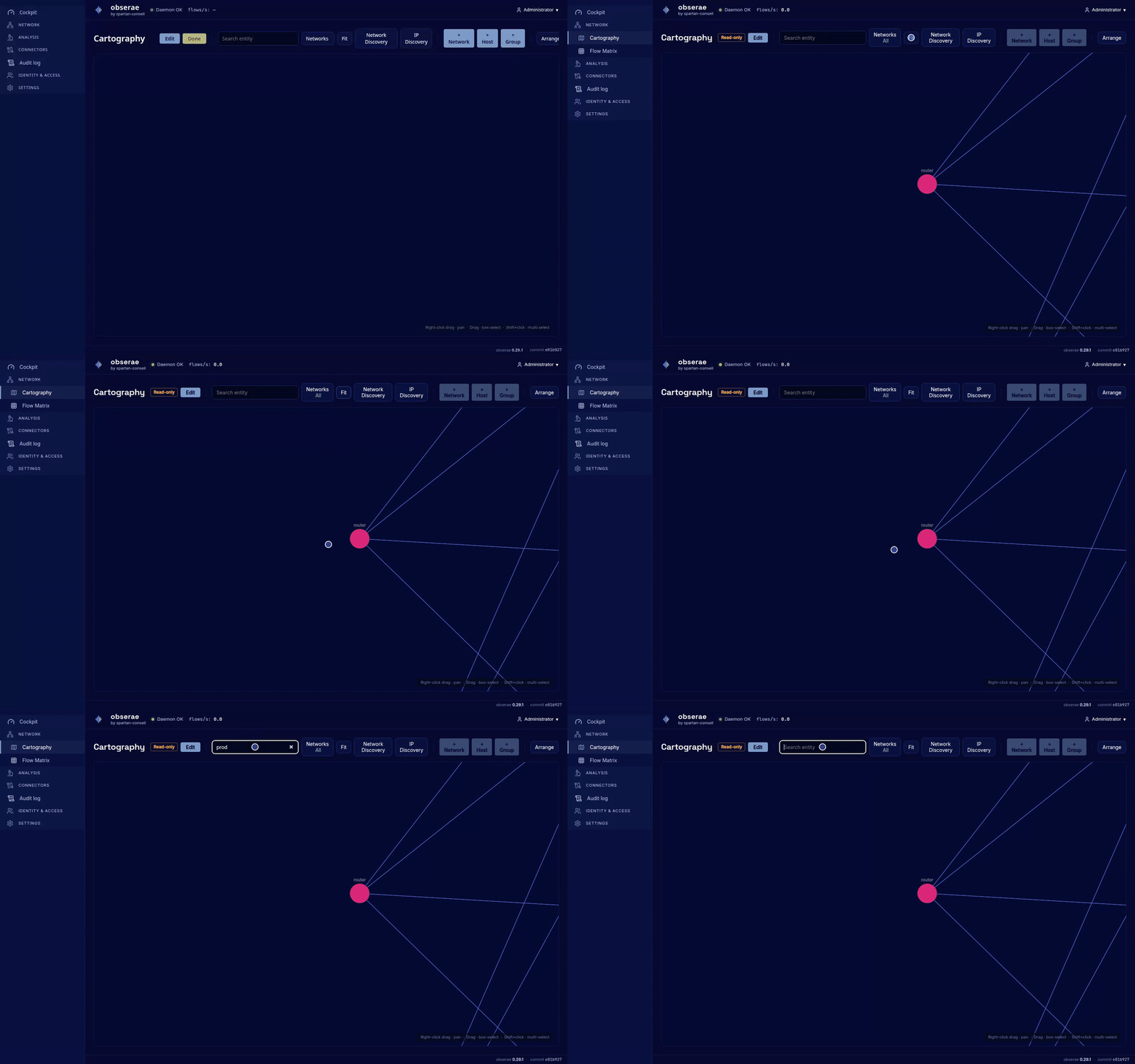
Interactive graph of your network. Each node is a host, network, group or service; edges show traffic seen on each link.
       ┌─────────┐        ┌─────────┐
       │ webserver├──────→│ database│
       └─────────┘  443    └─────────┘
            ▲                  ▲
            │ 80,443           │ 5432
       ┌────┴────┐        ┌────┴────┐
       │ internet│        │  admin  │
       └─────────┘        └─────────┘
What you can do on this page:
- Click a host or group to open a side drawer with its detail: interfaces, services, current session activity, recent matches.
- Click Edit to enter edit mode (the page is read-only by default — see the edit lock), then right-click a node for create / rename / delete actions, or right-click the empty canvas to create a new network, host or group from scratch.
- Box-select several nodes (or Shift-click them) to create a group in one click with + Group, or delete them together.
- Network Discovery drawer (toolbar button) proposes candidate subnets detected from non-routable (private) traffic, so you can declare your networks straight from the observed flows. + Declare opens the network form pre-filled with the candidate CIDR.
- IP Discovery drawer (toolbar button, formerly Orphan IPs) lists
every IP seen in traffic but not yet declared as an interface — the
machines to add as hosts. A small switch in the drawer header —
All IPs / Declared only — hides the rows tagged
outside known CIDRsso you can focus on candidates already covered by one of your networks. The switch state is session-only (does not survive a tab reload). - NAT Discovery drawer (toolbar button) proposes the declaration that would let obserae see through a NAT a single exporter reports both sides of: a declared host whose address an undeclared private range appears to be translated behind. Add interface or Set as NAT gateway writes it (see Cartography).
- A hexagon labelled
DHCP · Nis tethered to every network that has a DHCP range — N counts the distinct in-range IPs seen over the last 24h. Click the hexagon to open a dedicated drawer with the pool bounds and the live leases (see Cartography). - Wheel to zoom, drag the canvas to pan. Layout reset snaps the graph back to its automatic layout.
The graph is live: when sessions close on a link, the edge pulses.
Inactive hosts (no session activity in the last 24h by default — see
web.carto_inactivity_threshold) are greyed out so you can spot dead hardware
at a glance.
The full editing model — discovery funnel, cloning, colours and icons, documentation notes, DHCP ranges, deletion previews — is described in Cartography.
Vocabulary
Network → Vocabulary (/vocabulary) is the shared catalogue behind the
zone, environment, role and service-purpose selectors in Cartography. Category
tabs show every value and its source: Local for values created on this
instance, or the owning Rule Set id for installed content. Rule-set values are
read-only here.
With cartography:write, use + New value to create a deployment-specific
term. Service purposes also require one or more port/protocol pairs. Names are
lowercase and namespaced (acme.production); std. is reserved for content
shipped with obserae. Deleting a local value first previews every assignment
that confirmation will clear. See Rule sets → Local vocabulary.
Bulk import / export
The cartography you build in the GUI is part of the single YAML configuration
file you export from the Backup page and import from Restore (see below) — its
cartography: section. The Carto page’s File menu keeps only Export SVG
(a picture of the canvas).
Sessions
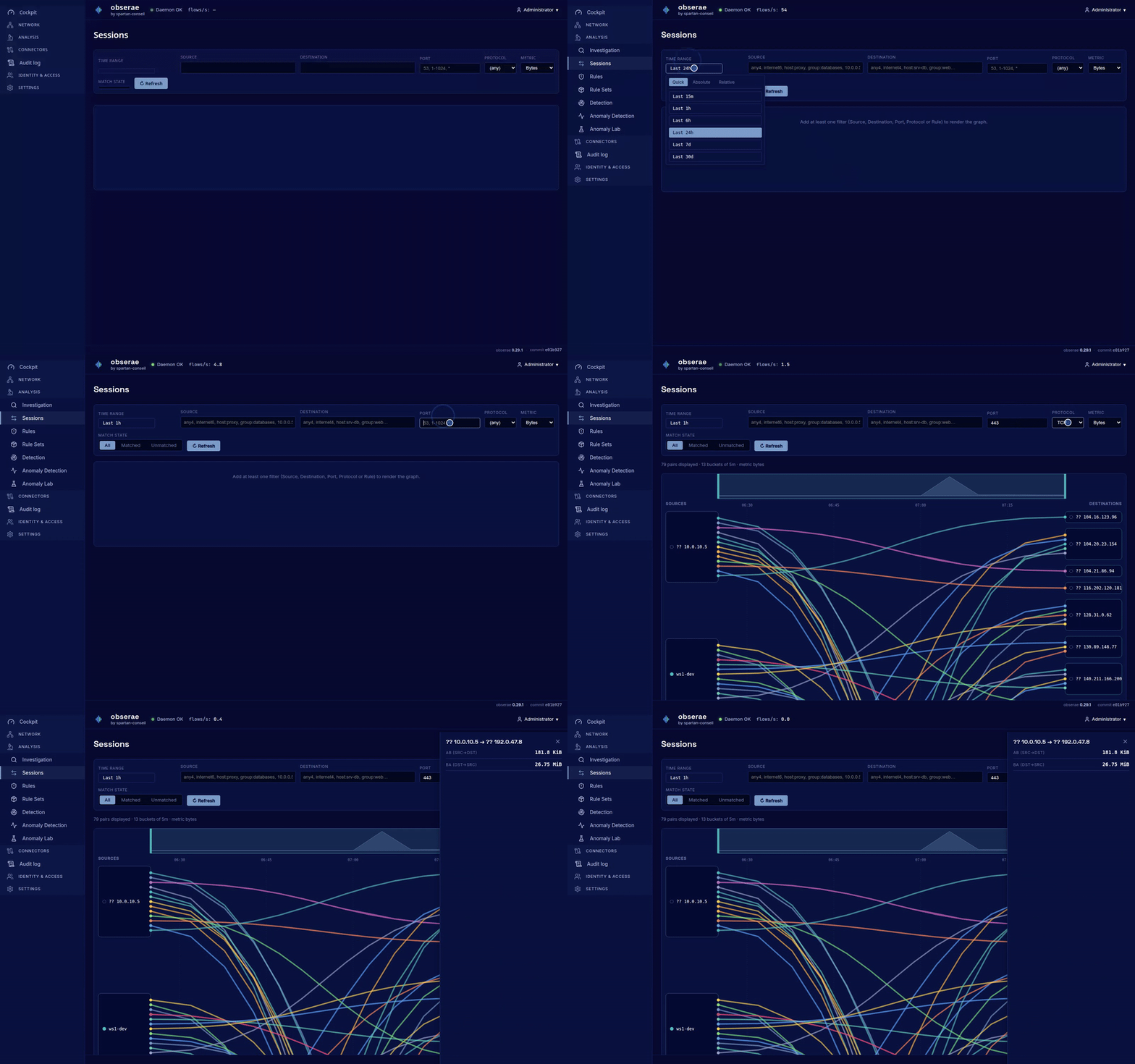
Tabular view of every session the engine knows about, with strong filters.
opened_at  client_ip:port    ↔ server_ip:port  state    role     bytes c2s/s2c  close_reason
10:42:18   73.x.x.x:60123 ↔ 10.0.0.10:443     closed   server   89 KB / 1.4 MB  tcp_fin
10:42:17   10.0.0.10:51200 ↔ 192.168.1.50:5432 closed   server   412 KB / 12 KB  idle_timeout
…
Filters across the top:
Time window — last 5m / 15m / 1h / 6h / 24h / 7d, or an explicit range.
State — active, half-open, closed.
Source / destination — chip pickers populated from your cartography. Accept hosts, groups, networks, and the family-specific reserved keywords
any4/any6andinternet4/internet6.Port / protocol — narrow by destination port and L4 protocol.
Match state — a three-position toggle: All / Matched / Unmatched. Unmatched shows only closed sessions that the rule matcher has evaluated and that no Flow Matrix rule accounted for — the canonical “what’s anomalous?” view. Matched shows the opposite: only the traffic your rules already explain.
Sessions that closed since the matcher’s last pass have no verdict yet. They are pending evaluation, not unmatched: they stay out of the Unmatched view and the status bar says how many there are and where the matcher has got to. They join one view or the other on the next pass (
matcher.interval, 30 s by default).A ribbon aggregates conversations, so a pair can genuinely hold both states — say one rule covers its HTTPS traffic and nothing covers its DNS. Such a pair appears in both views, each time with only the volumes of the state you selected. Hover a ribbon (or open its drawer) to read its split:
Rule match — 3 matched · 1 unmatched · 2 pending.
An IPv6 endpoint with a port renders in RFC 3986 bracket notation —
[2001:db8::1]:443 — so the port stays unambiguous.
Each row in the table is click-throughable — a drawer slides in with the session’s full detail (counters per direction, role inference, raw flows that contributed, matched rules).
The session model is described in Sessions.
Investigation
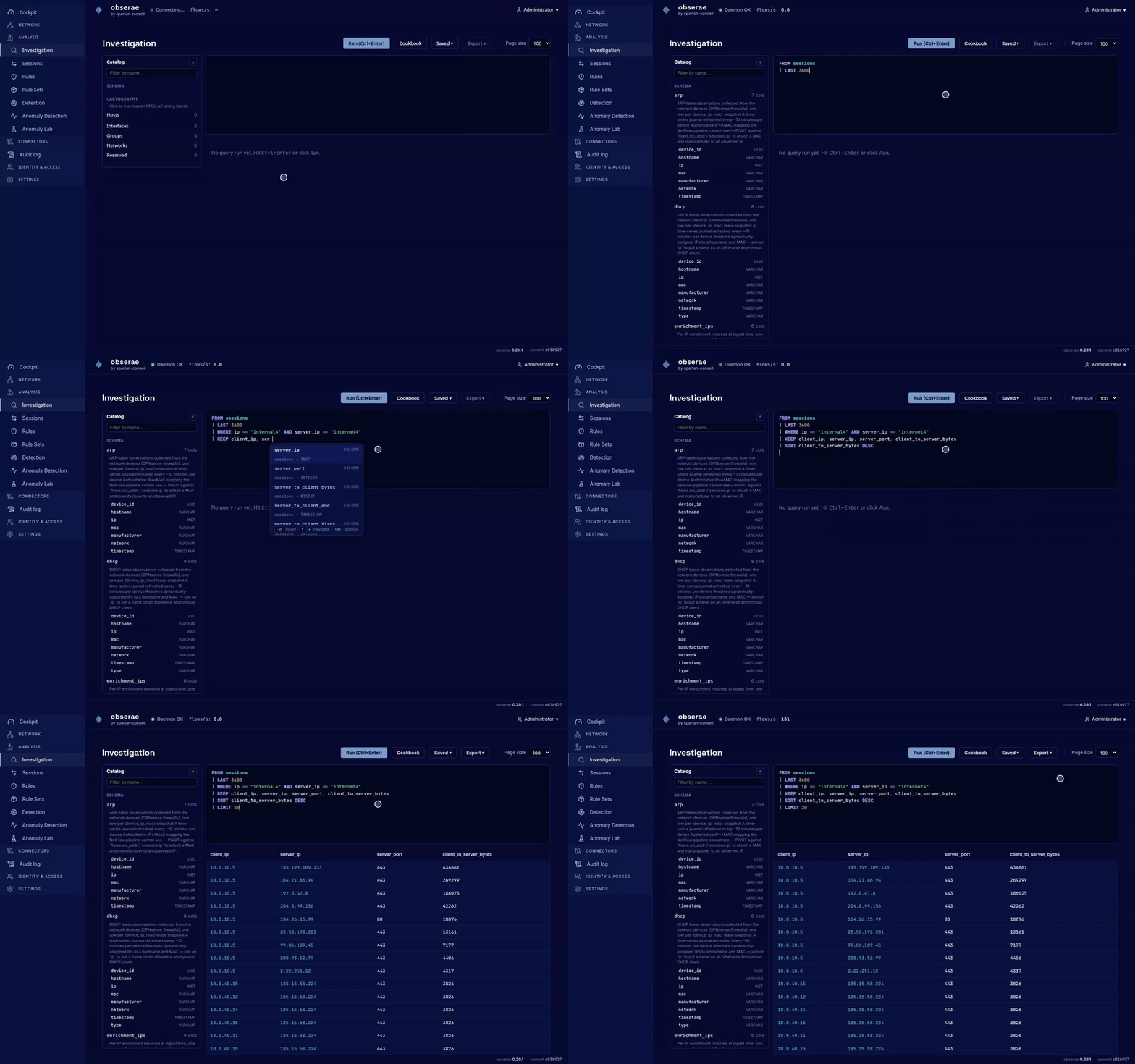
The home of NFQL — the query language. Use this page when you need to ask arbitrary questions of the data.
┌──────────────────────────────────────────────────────────────┐
│  FROM sessions                                               │
│    | LAST 3600                                               │
│    | WHERE ip == "production"                                │
│    | KEEP client_ip, server_ip, client_to_server_bytes       │
│    | SORT client_to_server_bytes DESC                        │
│    | LIMIT 50                                                │
│                                                              │
│  [Run]      ⌚ took 47 ms · 23 rows                           │
└──────────────────────────────────────────────────────────────┘
- Full text editor with syntax highlighting, auto-completion (tables, columns, cartography names) and line numbers (CodeMirror).
- Run (or
Ctrl+Enter) executes the query and shows results in a sortable table below. - Errors are inlined under the offending token, with the
same
line:columnpositions as the CLI. - Saved queries in the side panel — name a query, tag it, recall it later. Saved queries are what alert rules run.
- Export — buttons at the top of the results pane export the current rows as CSV or JSON.
The full language reference is in NFQL. The example queries from that doc all run unmodified on this page.
Flow Matrix
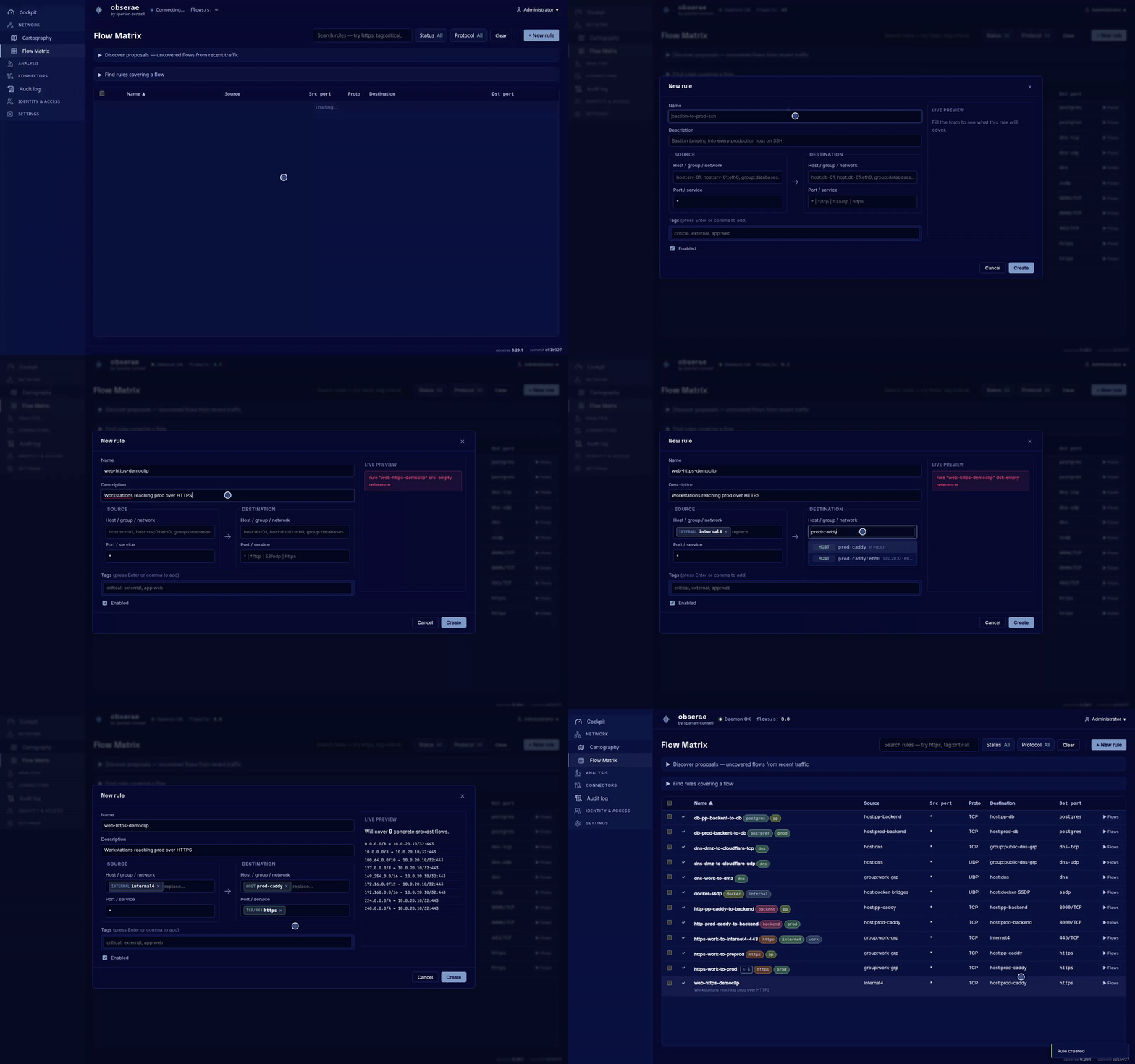
The full lifecycle of a Flow Matrix rule from one screen. These rules describe which hosts may talk to which — your allowed-traffic baseline. They are a different feature from the NFQL alert rules on the Rules page below.
NAME                          TAGS                 ENABLED  EXPANSIONS  MATCHES (24h)  LAST_ERROR
webserver-to-database         critical             yes              4              891
public-https  ⊂ 1             edge external        yes            206         12,453
backends-to-redis             datastore            no              24              0
…
What you can do:
- Create / edit a rule — a form with Name and
Description in full width at the top, then two side-by-side
blocks: SOURCE (left) and DESTINATION (right). Each block
has an entity picker (host / group / network), a port/service
field, and an interface picker. The source port/service defaults
to
*(any port). The entity autocomplete also offers the family-specific reserved keywordsany4/any6andinternet4/internet6, plus the DHCP projectionsnetwork:NAME.dhcp/network:NAME.staticfor any network that has a DHCP range — type a dot (office.) or the keyworddhcp/staticto reveal them; bare-name lookups stay uncluttered. The port/service field carries the protocol (*/TCP,53/UDP, or a catalogued service name likehttps) — there is no separate protocol dropdown. A live preview shows how many expansions the rule will compile to. - Tag a rule — a chips picker at the bottom of the form. Type a tag and press Enter, comma or click outside to commit it as a chip; × on a chip removes it; Backspace on an empty input removes the last chip. Each tag gets a stable colour (hashed from its name), so the same tag looks identical across the form, the table row, and the drawer.
- Search with operators — the search box understands
tag:critical,proto:tcp,port:443,host:srv-web,group:lan,network:dmzandservice:ssh. Multiple terms are AND-ed (tag:edge port:22). A plain word likehttpsmatches across name, description, src/dst, services, tags and any host the rule transitively touches via groups/networks. See searching rules for the full grammar. - Spot redundant rules — when one rule fully covers another
(e.g.
group:lan → internet4:443andhost:web → internet4:443), the narrower one gets a small⊂ Nbadge after its name meaning “covered by N rules”. Open its drawer for the dedicated Relations section, which lists each parent (subset/equal) and each child the rule covers (overlaptoo). When the rule is strictly covered by another enabled rule, a “Disable this redundant rule” button appears — clicking it togglesenabled=false, it never deletes. - Enable / disable — toggle the row’s switch. Disabled rules cost zero CPU per tick.
- Click a rule to see its compiled expansions plus a chart of matches over the last 24h.
The Flow Matrix rules are the flow_matrix: section of the single YAML config
exported from Backup and imported from Restore (see below). The per-page YAML
File menu was removed.
A rule with a non-empty LAST_ERROR is quarantined: it lives in the
database but the matcher skips it. Typical cause: a cartography mutation
removed an entity the rule referenced. Fix the cartography (or the rule) and
re-import to clear the error.
The rule model is described in Flow Matrix rules.
NAT
One console to see and steer every network address translation obserae knows about. It exists because NAT is where the flow matrix goes wrong: a translated conversation is really two halves — the traffic before translation and the traffic after — and until obserae can prove which half came first, it either leaves them as two unrelated conversations or, worse, attributes the inner host’s traffic to the gateway. The matrix is only correct once every translation is either proven (obserae knows the direction) or dismissed (you told it this is not a NAT). This page is where you do both. The mechanics of how a direction is proven live in Conversations Crossing NAT; this page is how you drive them.
Automatic detection
Two switches at the top of the page:
- NAT correlation — the master switch for the whole inference pass. Off, obserae never merges translated conversations at all (it still records raw sessions; it just stops trying to pair them across a NAT).
- Cartographic direction proof — enables the declaration-based proof specifically: the only proof available when a single probe captures both sides of a translation (the softflowd-on-the-docker-host case). Turn it off to fall back to the two-exporter evidence only. It is disabled while NAT correlation itself is off.
Both take effect at run time — no restart — and are persisted, so they
survive one. Their boot defaults come from correlation.nat.enabled /
correlation.nat.use_cartography in the YAML config; flipping a switch here
overrides that until you flip it back.
Active translations
The translations obserae is currently detecting, most recent first, within a rolling recency window (the last few days) and capped to a readable number of rows. Each column:
- Original / Translated — the pre- and post-NAT addresses. When the address falls inside a declared network (or belongs to a declared host’s interface) its name is shown next to it, so you read who rather than a bare IP.
- Kind —
snat(the client address was translated) ordnat(the server address was translated). - Proof — which evidence oriented the translation, worst to best trust:
- unproven — recorded before any proof applied (legacy rows);
- scope — one side is routable, the other private: self-evident;
- exporter path — the learned order in which two distinct probes saw the traffic;
- map — the cartographic proof fired implicitly: a host on your map has an interface in both networks, so the topology implies it translates. You declared nothing; obserae inferred it from the interfaces you drew.
- declared — a SNAT rule you declared covers this translation.
- rule — a NAT rule you declared matches it exactly. The strongest proof: you stated it, so nothing is inferred (see NAT).
- Conf. — the detector’s confidence that the two halves are the same conversation.
- Obs. — how many times the translation was observed.
- Last seen — when it was last observed.
Invalidate a row you know is not a real NAT (a busy server whose two clients happened to look like a translated pair, say). obserae records the rejection durably and, from the next correlation pass on, stops merging those two conversations — so the flow matrix keeps them as the two distinct conversations they really are. The rejection is keyed by the translation itself, so it holds across restarts and even if the row later ages out of the window.
Rejected translations
Everything you have invalidated. Restore lifts a rejection and lets automatic detection reconsider that translation on the next pass.
Rules
Everything you have declared each firewall translates, one card per rule, each rendered as the sentence it means — “Traffic leaving lan (10.9.0.0/24) through fw-1 is reported with its real internal source, not fw-1.” Disable pauses a rule without losing it; Delete retracts it. Declare a rule opens the form for one obserae has not proposed.
Proposals
Translations obserae observed or read off a firewall but that you have not declared, each with the evidence behind it. Accept opens the form pre-filled; Dismiss asks for an optional reason and stops the suggestion without changing how the traffic is correlated (that is what Invalidate does, above). Show dismissed brings the declined ones back so you can undo one.
When a connected firewall cannot expose its NAT rules through its API, the section says so: an empty list would otherwise read as “this firewall does no NAT”. See NAT → Importing from OPNsense.
Access
The page needs nat:read to view and nat:write to declare, accept, dismiss,
invalidate, restore or flip the toggles. Built-in analysts have both; auditors have read
only. The Cartography NAT Discovery drawer links here with
Manage NAT ↗.
Rules (alert rules)
NFQL-based alert rules. Each rule runs a saved NFQL query (authored on the Investigation page) on its own schedule and raises an alert when a condition is met. The list mirrors the Flow Matrix — click a row to open its panel.
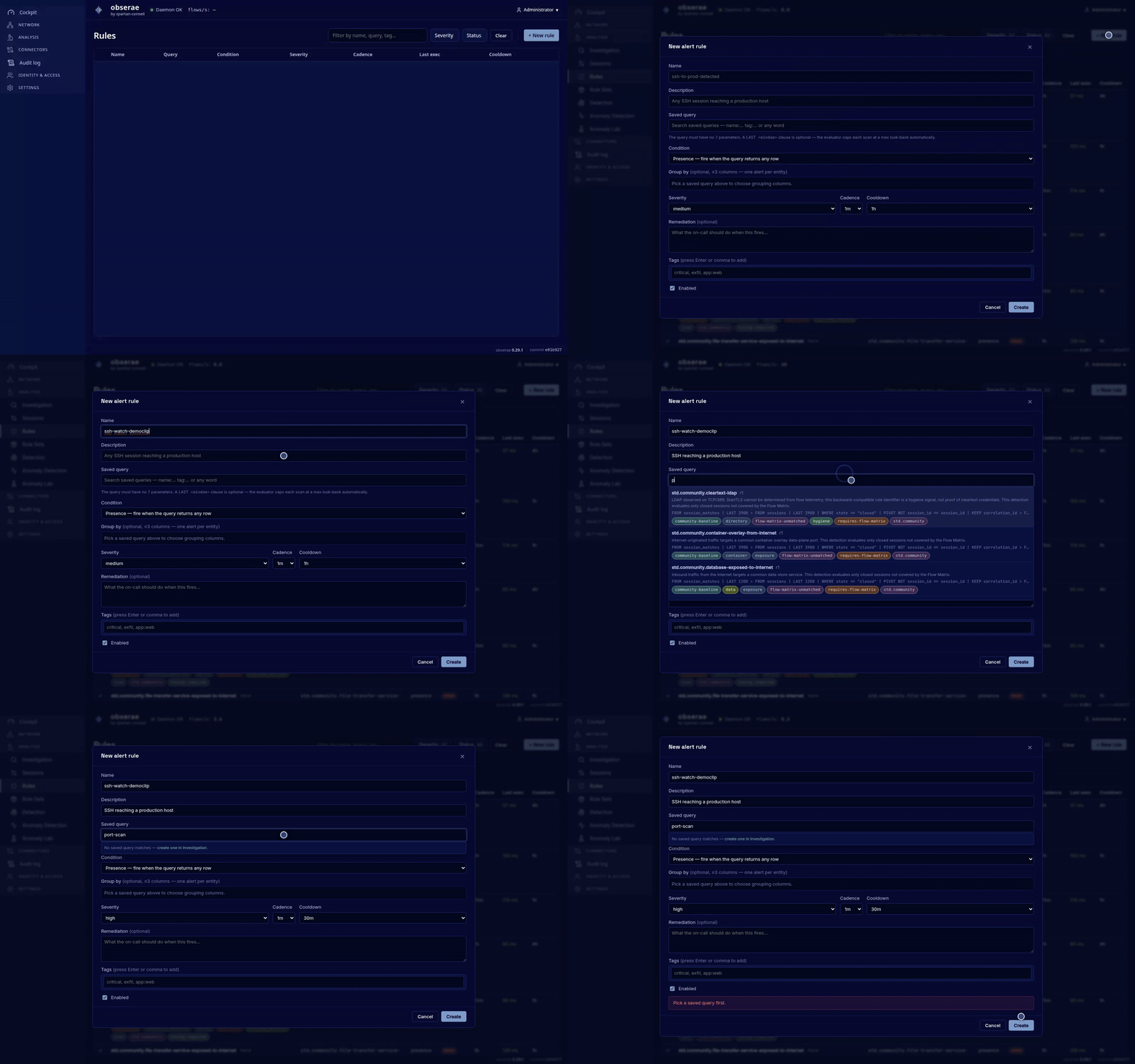
NAME              QUERY              CONDITION   SEVERITY  CADENCE  LAST EXEC   STATUS
ssh-from-internet ssh-watch          presence    high      30s      83 ms       enabled
scan-detector     distinct-dst-ports threshold>100 medium  1m       412 ms ⚠    enabled
new-external-asn  egress-asn         first_seen  low       5m       21 ms       enabled
log-collector-up  collector-flows    heartbeat   critical  1m       12 ms       enabled
bytes-out-anomaly egress-per-host    anomaly     high      5m       35 ms       enabled
What you can do:
- Create / edit a rule: find a saved query with the searchable
picker (type a word, or
name:/tag:to target a field), then set a condition — one of the five: Presence, Threshold, First seen, Heartbeat or Anomaly — a severity, a cadence (10 s … 1 h) and a cooldown, and an optional remediation note. - Sort by Last exec to find slow (“heavy”) rules — the column is colour-coded and a slow run is flagged.
- Open a rule’s panel to see its recent runs (when each ran, whether it fired, row count, duration, and a sample of the result).
The five conditions and every knob are described in Alerting. Anomaly rules also get a dedicated view — the Anomaly Detection page below.
Detection
The dashboard of alerts your rules raised. New alerts appear live.
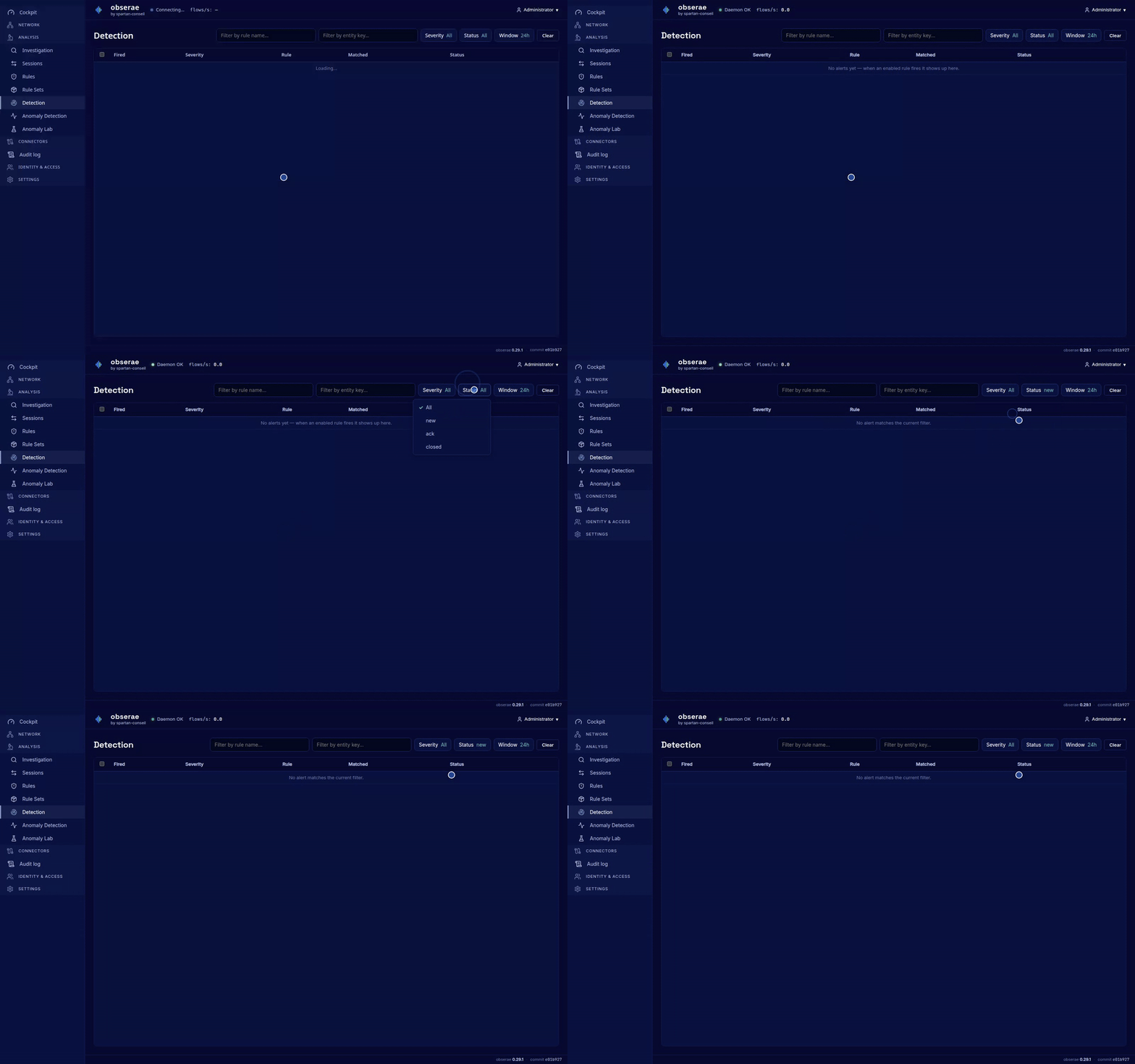
FIRED                SEVERITY  RULE               MATCHED  STATUS
2026-05-31 09:14:02  high      ssh-from-internet  3        new
2026-05-31 09:02:41  medium    scan-detector      128      ack
2026-05-30 23:51:10  critical  log-collector-up   0        closed
What you can do:
- Filter by severity, status, rule, or time window.
- Advance status: new → acknowledged → closed.
- Delete alerts (single or in bulk).
- Open an alert to see the rows that matched and jump to its rule.
- Every IP in the alert’s entity reads as an identity, name first:
web-01 (10.8.8.8)for a known asset,dmz · 10.0.2.7when only the network is declared, and the bare address otherwise — because an address nothing in your inventory claims is itself a finding. A public peer also carries its country (with flag), its ASN and the feeds listing it. The Anomaly page renders the same identity the same way.
See Alerting for the workflow end to end.
Anomaly Detection
A focused, NDR-style view of the statistical rules (the Anomaly condition) and the baselines they learn — separate from the deterministic Rules page (the two lists never mix).
- A compact metrics bar summarises the engine: rules active / learning / off, entities tracked, fires in 24 h, a 7-day timeline and a severity breakdown (the Rules page carries the same style of bar).
- Install the
std.anomalyrule set from Rule Sets to land nine ready detectors (exfiltration, C2, lateral movement, scanning and brute force, each mapped to MITRE ATT&CK + NIS2/DORA/CIS/SOC 2), or click New anomaly rule to author one in place — a modal with the same searchable query picker as the Rules page, no redirect. - Each rule lists its baseline method, tracked entities and last fire, with an inline on/off switch and an inline baseline-method switch (EWMA / Median + MAD / Seasonal; switching resets the learned baseline).
- The drawer puts Fires (7d) first — what paged is what you read first — then the baselines, ranked so entities that fired come first.
- Clicking a fire or a baseline opens the case view: the chart with the clicked fire starred, a sentence explaining the deviation, the numbers as tiles, and a rail with the entity’s identity, its other fires, the rows it matched, the investigate at fire time link and Acknowledge/Close. One screen per anomaly.
- A filter box searches by name, metric, method or group-by key.
See Anomaly Detection for the operators, the baseline methods, and how to read the page.
Rule Sets
Install, upgrade, enable/disable and remove rule packs — ready-made bundles of alert rules written against a standard vocabulary (zones, roles, service purposes) that you map onto your own cartography. Installation shows a dry-run of everything a pack will add before you commit.
See Rule sets for the model and the bundled packs.
Outputs
Export destinations for your alerts: webhooks, Gotify, Slack, Mattermost, Telegram, syslog/SIEM, Splunk, Elasticsearch/OpenSearch, PagerDuty, Opsgenie and email. Each output receives alerts at or above a minimum severity, optionally filtered by rule name or tag, and obserae delivers them reliably with automatic retry.
What you can do:
- Add the destination your team uses, from a generic webhook to chat, on-call, syslog/SIEM or search backends.
- TLS for internal endpoints: trust a custom CA certificate, or skip verification (with an explicit insecure warning).
- Route by minimum severity and optional rule name / tag.
- Send test to confirm connectivity and signing before relying on it.
- Watch Recent deliveries with per-attempt status (sent / failed / dead).
See Outputs for the full reference.
Connectors
The Connectors group covers everything that connects obserae to the rest of your environment: flow exporters, device connectors, IP enrichment sources and alert outputs. See Connectors for the operator view of each family.
Exporters page
Exporters (/exporters) — a table with one row per NetFlow/IPFIX-emitting
device obserae has seen. The name, equipment type and details
columns are yours to fill in; once labelled, the rest of the GUI shows the
friendly name instead of the raw exporter IP.
The list auto-refreshes from observed traffic every 5 minutes; a Rescan button forces a sweep on demand if you just added a new device. Each row also has a Delete button to drop an exporter you have decommissioned — the rescan only adds new exporters, so Delete is how you clear out stale ones.
Devices page
Devices (/devices) — device connectors that pull identity context (ARP,
DHCP leases, interface networks) from supported network devices; OPNsense is
supported today. See Connectors.
Cloud Attribution page
Cloud Attribution (/cloud-attribution) — cloud-provider sources such as
AWS, Azure, Google Cloud, Oracle Cloud and Cloudflare. When on, public IPs get
a provider/service/region badge across the GUI when the source can identify
them.
Threat Intelligence page
Threat Intelligence (/threat-intel) — FireHOL Level 1, Tor exit nodes and
Tor relays. Hits surface as threat/Tor context during investigation. They are
triage signals, not automatic verdicts.
Select Add source to import your own IP/CIDR file or configure a periodically refreshed URL. The modal accepts plain/netset, CSV, TSV, JSON, NDJSON, STIX 2.x and MISP feeds. Custom rows show their transport and format; uploaded rows have Replace file, and custom rows have a protected Delete action. A parser report tells you how many records were accepted, invalid or duplicated.
GeoIP page
GeoIP (/geoip) — country-level context for public IPs. Use it for quick
visual scanning and coarse residency questions, not as forensic proof of a
server’s physical location.
ASN page
ASN (/asn) — network-owner attribution: which AS operates the public IP
range. It catches peers that curated cloud and threat lists do not identify.
The full enrichment mechanism is described in IP Enrichment.
Audit log
Included with Business, Business+, and Enterprise licenses. In Community, the page explains the license requirement without exposing the stored audit history. Renewal restores access; no audit data is deleted.
❒ Audit log (/auditlog) is the append-only record of every operator
action taken on obserae — across both control planes (the web GUI and
the obserae-cli socket). It answers “who changed what, and when”: a rule
edited, a source disabled, a user created, a backup restored, an alert
deleted.
WHEN                 ACTOR   PLANE  ACTION                 TARGET
2026-06-18 09:14:02  admin   web    rule.updated           ssh-from-internet
2026-06-18 09:02:41  alice   cli    enrichment.disabled    (master switch)
2026-06-17 23:51:10  admin   web    user.created           bob
What you can do:
- Filter by actor, action, target or time window to reconstruct a change history.
- Open an entry to see the full detail recorded for that action.
- Conserve it for as long as you need — its retention is configured separately on the Retention page, so the trail outlives ordinary flow/session data.
Tamper-evidence
The journal is tamper-evident, not just append-only. Every line is chained to the previous one with a SHA-256 hash, and closed files are sealed with an HMAC in a separate registry. That means any attempt to edit, delete or reorder a past entry breaks the chain and is detectable after the fact — even by someone with disk access.
You can verify the chain independently, offline, without trusting the running daemon:
# Built into the CLI (offline — reads the files directly, no daemon needed)
obserae-cli verify-auditlog --dir ./data/auditlog

# Or with the standalone, dependency-free Python verifier
python3 tools/verify_auditlog.py --dir ./data/auditlog
Both read the raw on-disk bytes and report any break in the chain (exit 0 = intact, non-zero = a break was found). This is what lets the audit log stand up as evidence rather than a convenience log.
Configuration bundle
Your whole operator configuration travels as a single YAML file — one top-level key per domain, each in the format that domain already used:
cartography:         { networks: [ { ..., nat_gateway: fw-1 } ], hosts: [...], groups: [...] }
flow_matrix:         { rules: [...] }
alerting:            { queries: [...], rules: [...] }
outputs:             [ ... ]
devices:             [ ... ]
enrichment:          { enabled: true, sources: [...], custom_sources: [...] }
exporters:           [ ... ]
users:               { groups: [...], users: [ { ..., mfa: {...} } ], api_tokens: [...] }
llm:                 { providers: [...] }
assistant:           { quotas: [...] }
nat:                 { enabled: true, rules: [...], suppressions: [...] }
reports:             [ ... ]
backup:              { ... }
backup_destinations: [ ... ]
backup_processes:    [ ... ]
retention:           { ... }
rule_sets:           { local_values: [...], packs: [...] }
login_security:      { ... }
The generated file contains configuration data only; it does not inject section comments.
There is no separate page for it: you export it from the top right of the Backup page, and import it from the Restore page’s Configuration only card.
The users section carries accounts, custom groups, API tokens and local
MFA state. Password/token and unused recovery-code values remain one-way hashes;
TOTP secrets are encrypted enc:v1: envelopes. The
three built-in groups (admin, analyst, auditor) are never
exported: they are always present and the server manages their permissions.
If a hand-edited bundle still defines one, the import ignores it and shows
a warning — so a file cannot redefine a privileged built-in role.
The llm section carries the AI endpoints from the AI Providers page: the
base URL, the default model, the per-endpoint tunables and any tariff you
corrected by hand. Its assistant companion carries the monthly spend
ceilings, named by username so the file still means something on another
instance — the transcripts and the recorded spending never travel.
The nat section carries declared rules, the two automatic-detection switches,
and your durable suppression/dismissal decisions. Each rule names its host;
network nat_gateway values remain under cartography.networks.
The bundle is meant to be read, diffed and committed to a git repository, so it holds no internal identifiers. A decision names what it is about — a translation by its addresses and protocol, a dismissed proposal by the rule it suggested — and obserae recomputes the identifier on import. That is also what lets you write an entry by hand.
Download config (.yaml) on the Backup page downloads
obserae-config.yaml. Empty domains are omitted. Every reversible credential
travels encrypted with this instance’s master key. A restore with another key
keeps opaque envelopes where supported and reports that credentials must be
re-entered; MFA factors require the matching key and fail validation otherwise.
The daemon’s own start-up file (configs/obserae.yaml: listeners, ports, pool
sizes, decoder settings) is not part of the bundle. That file is
infrastructure, deployed with the daemon; the bundle is everything you
configured from the GUI or the CLI.
Restore → Configuration only applies a file back. A section present in the file replaces that domain; a section absent is left untouched. The whole file is validated before anything is written, so a mistake never half-applies — and a summary then lists which domains were applied, which were skipped, and any warnings. Exporters are created even if the daemon has never observed traffic from them: re-importing a full config usually targets a blank database, so unseen exporters are kept rather than dropped.
Importing a large configuration (a big cartography plus many rules) can take
tens of seconds. It runs asynchronously: a progress bar shows the
percent, the current phase (e.g. Compiling flow-matrix rules), a live detail
line (compiling rule 45/200) and an ETA. A small indicator in the top bar
shows the same progress on every page, so you can browse away and still see
the restore advancing — a long restore never looks like a crash, and the page
never shows a reverse-proxy 502. The import reports complete only once the
cartography has been rebuilt, so opening the cartography right after always
lands on the imported topology, never an empty graph. Only one restore runs at
a time (a second is refused while one is in flight).
Rule-set state and local vocabulary are applied first, then Cartography, the flow matrix and alert rules. This preserves vocabulary assignments while still making topology available before rules compile against it.
License
Settings → License (/license, license:read) displays only fields from a
cryptographically verified offline license. Its certificate-style summary shows
the signed company, Business / Business+ / Enterprise plan, employee band and
live validity phase. The same compact identity appears in the footer immediately
to the right of the Obserae version.
An operator with license:manage can drop or choose a file. Obserae first checks
it against every public root embedded in the binary and opens a decoded preview;
nothing is persisted until that preview is confirmed. Renewal rejects serial
rollback and conflicting subscriptions. Removal requires typing the exact signed
company name. Validation, installation, renewal, restore and removal attempts all
appear in the audit log.
Below 60, 30 and 7 days, the login page shows a dismissible green, amber or red notice. During the 30-day grace period, a black banner remains visible at the top of every authenticated page and professional access continues unchanged. After grace, professional features are disabled until renewal; all of their stored configuration is preserved. The active license is included in consolidated YAML as one artifact and cryptographically rechecked during restore. Renewal replaces it; removal leaves no license section in later exports.
Without a currently usable license, the Community interface presents a quiet
edition notice in place of Audit log, Reports, LDAP Authentication, OIDC / SSO
and Groups. Only the built-in admin can authenticate. The std.enterprise
and std.anomaly rule sets and commercial output destinations remain listed as
preserved but inactive. Community can create and deliver webhook, Discord,
Telegram, email (SMTP) and Gotify outputs. Business, Business+ and Enterprise
all unlock this complete professional set.
Master key
Settings → Master key (/masterkey, system:manage) holds the single
32-byte key that seals every stored secret — alert credentials, device API
secrets, LDAP and OIDC secrets, MFA secrets — and, through HKDF, signs the
audit-log seals. It lives at <data_dir>/masterkey.bin and is never
included in a configuration bundle.
Three actions:
- Show key (base64) — the 44-character transport form, to copy into a
secret manager. Same value as
obserae-cli masterkey export. - Download masterkey.bin — the raw 32 bytes exactly as the daemon reads them at boot. Restore this file into the data directory before restoring a backup archive, or the archive cannot be opened.
- Rotate key… — switches to a key you paste: every secret is re-encrypted and every audit seal re-signed live, with no restart.
Keep a copy offline. Anyone holding this key can decrypt every secret and forge audit seals — and without it, a backup archive is unreadable.
Storage, Retention & Backup
Everything that manages data over time lives under the Settings group in the sidebar, as three separate pages. See Lifecycle for the full walkthrough.
Retention and backup changes made here persist across restarts and no longer revert to
obserae.yamlon reboot.
Storage
The on-disk footprint: database size, retained traffic history, audit log, backup directory and free disk on the mount. Use this page to size the retention policy or confirm the backup directory is not growing past its rotation policy.
Retention
Periodic purge of stale rows from flows, sessions and the audit log.
Off by default — flip the master switch only after you have picked at
least one max age. Changes take effect on the next sweep; no restart needed.
Backup
Scheduled snapshots of the instance state, landing under the configured directory. Rotation enforces the limits you set (max age and/or max files). A Backup now button writes one snapshot immediately; the timeline below shows the snapshot chain, and restore can be previewed before it is applied.
Users & Access
Additional users and groups are included with Business, Business+, and Enterprise licenses. In Community, only the built-in local
admincan sign in. Stored users, groups and identity mappings remain intact and become available again when a valid license is installed.
The Users page (visible only to administrators) manages who can sign in and what they can do. It has three tabs, each laid out like the Flow Matrix: a list of rows with Edit and Delete buttons, and a + New … button at the top right that opens a creation dialog. Edits and deletions open a dialog too (deletes ask for confirmation first).
Users — each row shows the account, its groups and its status. + New user creates an account (username, display name, password, groups); Edit changes the display name, groups, enabled/disabled state, and can set a new password (leave the password blank to keep the current one). The built-in
adminaccount is always present and cannot be deleted.Groups — a user’s permissions are the union of their groups’. Four built-in groups ship and cannot be edited or deleted:
- admin — full access to everything.
- analyst — operate the product: view, investigate, run NFQL, acknowledge alerts, edit cartography, rules and detection.
- auditor — read-only: dashboard, cartography, sessions, rules, alerts.
- monitoring — a single machine-facing permission (
monitoring:read): query theGET /api/statushealth & metrics snapshot. Assign it to a dedicated supervision user (or its API token) and nothing else.
Use + New group to create a custom group and tick exactly the permissions it grants (e.g.
cartography:read,nfql:execute,outputs:manage); Edit adjusts its description and permissions. A custom group can only be deleted once it has no members.API tokens — + New token mints a token for a user to call the REST API from a script:
Authorization: Bearer obs_…. The secret is shown once in a dialog right after creation — copy it then. Tokens inherit their owner’s permissions and can be revoked or deleted from their row.A ready use case is
GET /api/status— an authenticated JSON snapshot of the daemon (build version and uptime, flow/session/rule and cartography counts, NetFlow template diagnostics, alert roll-ups, coverage, ingest timing, storage usage, runtime health and the audit-integrity verdict). It requires themonitoring:readpermission (the monitoring group, or any admin), so a supervision system can poll it with a least-privilege token:curl -H "Authorization: Bearer obs_…" http://127.0.0.1:8080/api/statusThis is the exact same payload the
obserae-cli statuscommand prints (over the admin socket) — one shared snapshot for both the API and the CLI. It is the authenticated counterpart to the public, unauthenticated/healthzliveness probe (which stays a plainok).When the web GUI is disabled (
web.enabled: false), the daemon still servesobserae-cli status, but the live metrics computed by the GUI’s health producer (flows/sec, coverage, ingestion timing, runtime, audit) read zero andlive_metrics_availableisfalse; the counts, gauges, storage and alert roll-up remain accurate.
How people sign in — local accounts, Active Directory (LDAP), single sign-on (OIDC/SSO), two-factor authentication and login protections — is configured under Identity & Access and described in Authentication.
Pages and actions a user isn’t allowed to use are hidden from their sidebar and toolbars, and the server refuses them regardless (so a hidden action can’t be forced by hand). Sign out from the user menu at the top-right of any page.
The same operations are available headless via the CLI — see
CLI — including recovering access with
obserae-cli user reset-admin-password if you are locked out of the GUI.
Tools
Two utilities that need nothing from your data, between Data Protection and Settings in the sidebar. Both are open to any user who can log in.
Documentation
The complete obserae documentation, shipped inside the binary. Nothing on these pages is fetched from the internet, so an air-gapped install has the same manual as any other.
The index groups the documents the same way the public site does, and the search box queries the same index the Assistant uses — enter a word rather than guessing which page covers it. A document opens beside a table of contents that tracks where you are as you scroll, and cross-references between documents work as internal links.
Two things are worth knowing:
- Every page in the GUI carries a
?in the top bar that opens the section covering that page. On Investigation it opens NFQL, on Cartography it opens Cartography, on Devices it opens the device-connector section of Connectors. Pages with nothing to point at show no question mark. - The demo animations are not included. They are about 140 MB of GIFs, and carrying them would multiply the download for something you can watch online. Where one belongs, the page says so instead of showing a broken image.
Sizing
A calculator that turns your environment into the disk, backup volume, memory and CPU you need. It is the interactive form of Sizing, running the same arithmetic on the same coefficients.
Give it your flow rate, how many sessions a flow record tends to produce, how long you keep each kind of data, and how much headroom you want. It returns a per-store breakdown, a total, a backup volume for your whole rotation policy — not for one snapshot — and a memory and vCore band.
Every figure says where it came from, which is the point:
| Chip | Meaning |
|---|---|
measured | Taken from a real production instance. |
estimate | Plausible, never observed. Hover it for the reasoning. |
instance | Derived from what your deployment actually stores. |
Two of the four storage coefficients are measured and two are extrapolations; the memory and CPU figures have never been measured against a known flow rate at all. The page says so rather than presenting a guess as a fact.
If you hold system:manage, Use my instance reads this deployment and
replaces the published coefficients with your own. A store holding fewer than a
million rows is left alone — below that the ratio is mostly Parquet footers
rather than data — and a daemon that has not measured a flow rate yet says so
instead of reporting zero.
Keyboard shortcuts
| Shortcut | Action |
|---|---|
Ctrl+K | Open the command palette (jump to page or entity) |
Ctrl+Enter | Run the query (Investigation page) |
Esc | Close any open drawer or modal |
g c | Go to Cartography |
g s | Go to Sessions |
g q | Go to Investigation |
g r | Go to Rules |
Where to next
- NFQL — get fluent in the query language.
- Cartography — model your real infrastructure.
- Flow Matrix rules — write rules that catch what matters.
- Alerting — turn saved queries into alerts.