
Alerting
Alerting is the response half of obserae’s NDR workflow: detection raises a signal, alerting decides when that signal is worth acting on and routes it out (see outputs for webhooks, chat, on-call and SIEM). obserae blocks nothing — enforcement stays on your firewalls; obserae tells you and your tools what to act on. Wiring it to a SOAR or a SIRP is its own guide: Response Integrations.
obserae turns the NFQL query language into a simple, powerful alerting system. You write a query that describes something you want to watch for, save it, and wrap an alert rule around it. obserae runs your rules in the background and raises an alert whenever one matches.
The idea in one sentence: the query does the detecting, the rule decides when that counts as an alert.
Three pages work together:
- Investigation — write, test and save your NFQL queries.
- Rules — build alert rules on top of saved queries.
- Detection — see, triage and clear the alerts that fired.
Common tasks
- Save a query an alert can run
- Build a rule and pick its condition
- Choose between the five conditions
- Get one alert per host instead of one big alert
- Triage what fired
- Move rules to another instance
Not to be confused with Flow Matrix rules. The rules on this page run NFQL queries on a schedule. The Flow Matrix rules describe allowed connectivity and are matched against every session. The two are complementary — and they meet: an alert query can target exactly the sessions the Flow Matrix did not match.
1. Write and save a query
Open Investigation, write a query, and press Run to check it returns what you expect. For example, “SSH sessions reaching one of my servers”:
FROM sessions
| LAST 300
| WHERE server_port == 22
| KEEP client_ip, server_ip
When you’re happy, use Saved ▾ → Save as… to store it with a name and (optionally) some tags. Saved queries keep a creation/modification date and a revision number that ticks up every time you change them — so you always know which version is live.
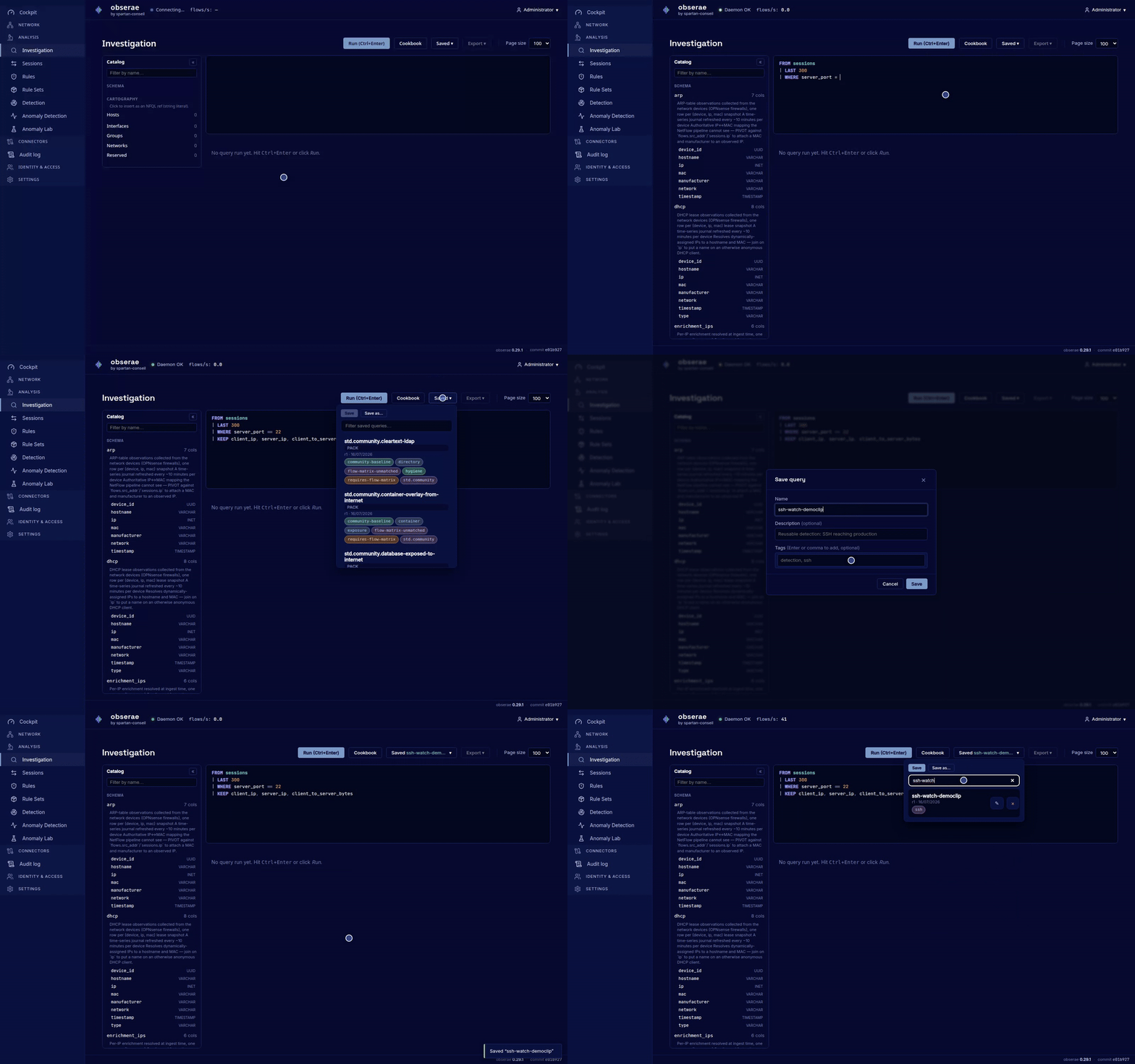
The LAST window is required. An alert query must include a
LAST <seconds> clause (here LAST 300 = the last 5 minutes). Without it,
the rule would re-scan your whole history on every run. Pick a window at
least as long as how often the rule will run.
2. Build a rule
Open Rules → + New rule and fill the form. The field names below match the form exactly:
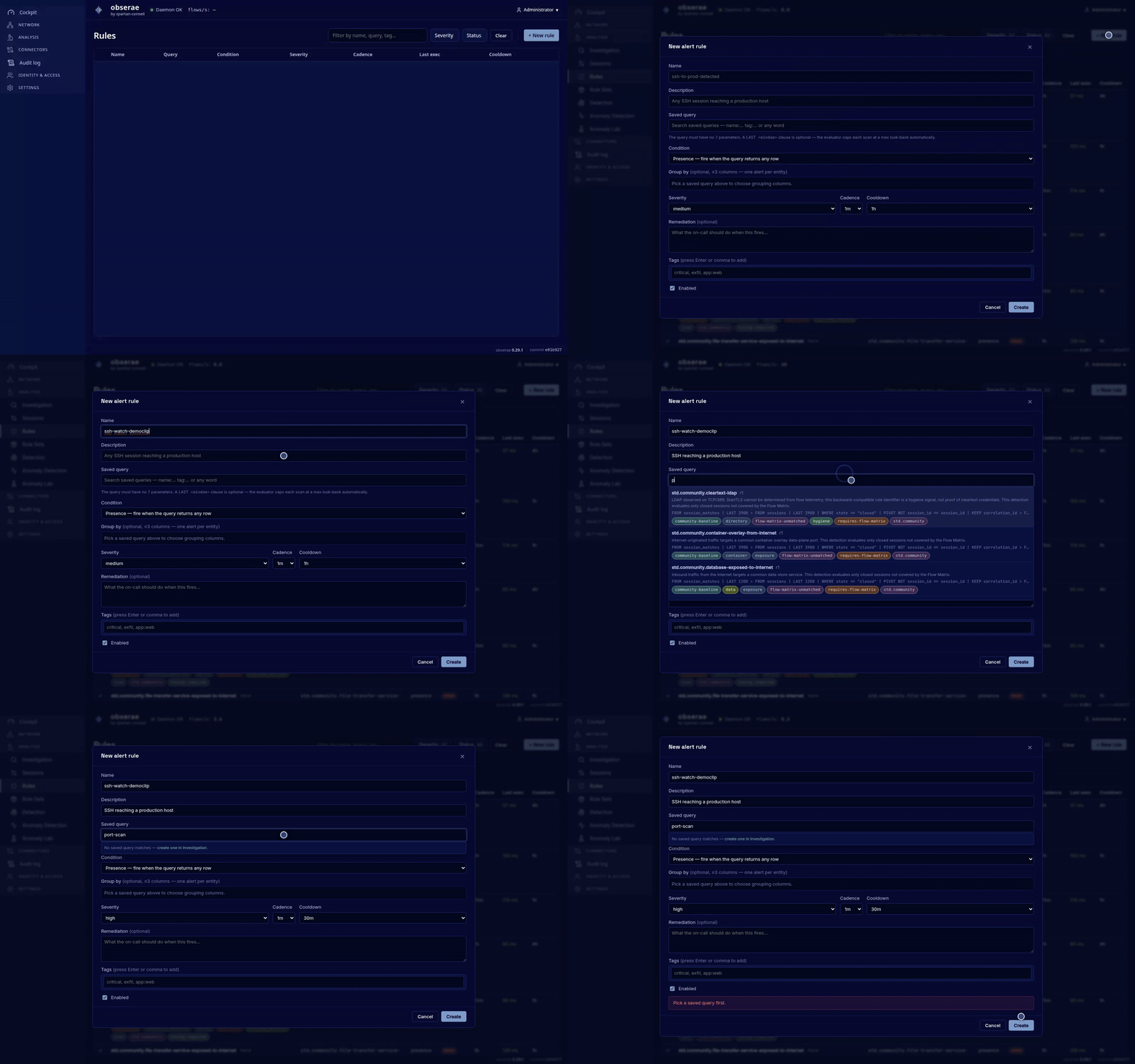
- Name and Description.
- Saved query — the query the rule runs. Start typing to search
your saved queries: a plain word matches the name, description, tags
or query text, and you can target a field with
name:…ortag:…(e.g.tag:critical). Each result shows the query’s name, revision, tags and a preview of its NFQL — click one to pick it. The query must contain aLAST <window>clause and no?parameters; the form rejects it otherwise. - Condition — how it should fire. The five conditions are described below.
- Severity — info, low, medium, high, or critical.
- Cadence — how often the rule runs. The dropdown offers
10s,30s,1m,5m,15m,1h. Run cheap, time-sensitive rules often; run heavy rules rarely. - Cooldown — after a rule fires, it stays quiet for this long so
you aren’t flooded by the same alert. Choose from
None,5m,15m,30m,1h,6h,24h(Nonedisables the throttle — useful for First seen / Heartbeat, where duplicates are already prevented). - Remediation (optional) — a note your on-call analyst sees when the alert fires.
- Tags and the Enabled checkbox.
That’s it. obserae starts running the rule on its cadence.
The five conditions
| Condition (as shown in the dropdown) | Fires when… | Good for |
|---|---|---|
| Presence — fire when the query returns any row | the query returns at least one row | “this happened at all” — SSH from the internet, a connection to a forbidden service |
| Threshold — fire when the row count crosses a bound | the row count satisfies the operator + value you set (the field is labelled Value (row count)) | volume-based detections — port scans, brute-force, data exfiltration |
| First seen — fire on a never-seen-before result | a result row that has never appeared before shows up | spotting change — a new source→destination pair, a new external IP |
| Heartbeat — fire when a primed query goes silent | the query returns nothing after it has previously returned data | catching outages — “my log collector went quiet” |
| Anomaly — fire when a value strays from what’s normal for that entity | a per-entity number deviates from its learned baseline by more than a few standard deviations (up or down) | behaviour that has no fixed threshold — a host suddenly sending far more than it usually does, or reaching far more peers than usual |
Each condition adds its own knobs to the form:
- Threshold — pick an Operator (
>,<,>=,<=,==) and a Value, plus a Metric: the default rows compares how many rows the query returned, or you can pick a numeric output column of the query (e.g. aSUM/COUNT_DISTINCTyou named inSTATS) to compare its value instead — for example “outbound bytes over 1 GiB”. - First seen — an optional Seen retention in seconds.
- Anomaly — the numeric Metric column to watch and three knobs (all
with sensible defaults): k — how many standard deviations count as
anomalous (default
3, higher = fewer/stronger alerts); alpha — how fast the baseline adapts, between 0 and 1 (default0.1, lower = longer memory); and min samples — how many values it learns per entity before it will fire (default10). Anomaly always needs a Group by key: it keeps one baseline per entity. Anomaly rules also get a dedicated page — see Anomaly detection.
Conditions that “learn” first
First seen, Heartbeat and Anomaly need to know the normal state before they can fire. On a rule’s first runs they quietly learn (they won’t alert), then start firing on what’s genuinely new, newly missing, or abnormal. For Anomaly the learning length is the min samples knob; for the other two it’s automatic. Either way, a cold start won’t flood you.
Anomaly also keeps its baseline honest: when it fires, the spike that triggered it is not folded into the “normal” it broke from — so one big burst can’t quietly raise the bar and hide the next one. And it stays cheap: the baseline is just three numbers per entity, capped by Max keys and pruned like every other grouped rule. A value that has been perfectly flat is naturally sensitive — any change reads as unusual, which for “bytes out” or “number of peers” is usually exactly what you want. Full walkthrough with the maths and recipes: Anomaly detection.
One alert per entity: Group by
By default a rule produces a single alert for the whole result. Set
Group by (1–3 of the query’s output columns, e.g. client_ip) to get
one alert per distinct value instead — one per scanning source, not one
for all of them. Cooldown, First seen and Heartbeat then all work per
key, and each alert is tagged with its key (shown as chips on the Detection
page, and filterable with key:…). A grouped Threshold must use a column
metric (not rows). The Max keys advanced field caps how many distinct
values are tracked (default 50 000) to protect memory on a very wide key like
an internet peer.
Many rules, still fast
obserae evaluates the rules that are due in a given cycle in parallel rather than one after another, so adding more rules — or heavier ones — no longer stretches each cycle end to end. If you run a lot of demanding rules on a busy host and evaluation still can’t keep up (you’ll see an “over budget” warning in the logs), give the heavy rules a longer interval so they run less often.
3. Read and triage alerts
Open Detection to see everything that fired. Each alert shows when it happened, its severity, the rule that raised it, and how many rows matched. Click an alert to see a sample of the matching rows and jump to its rule.
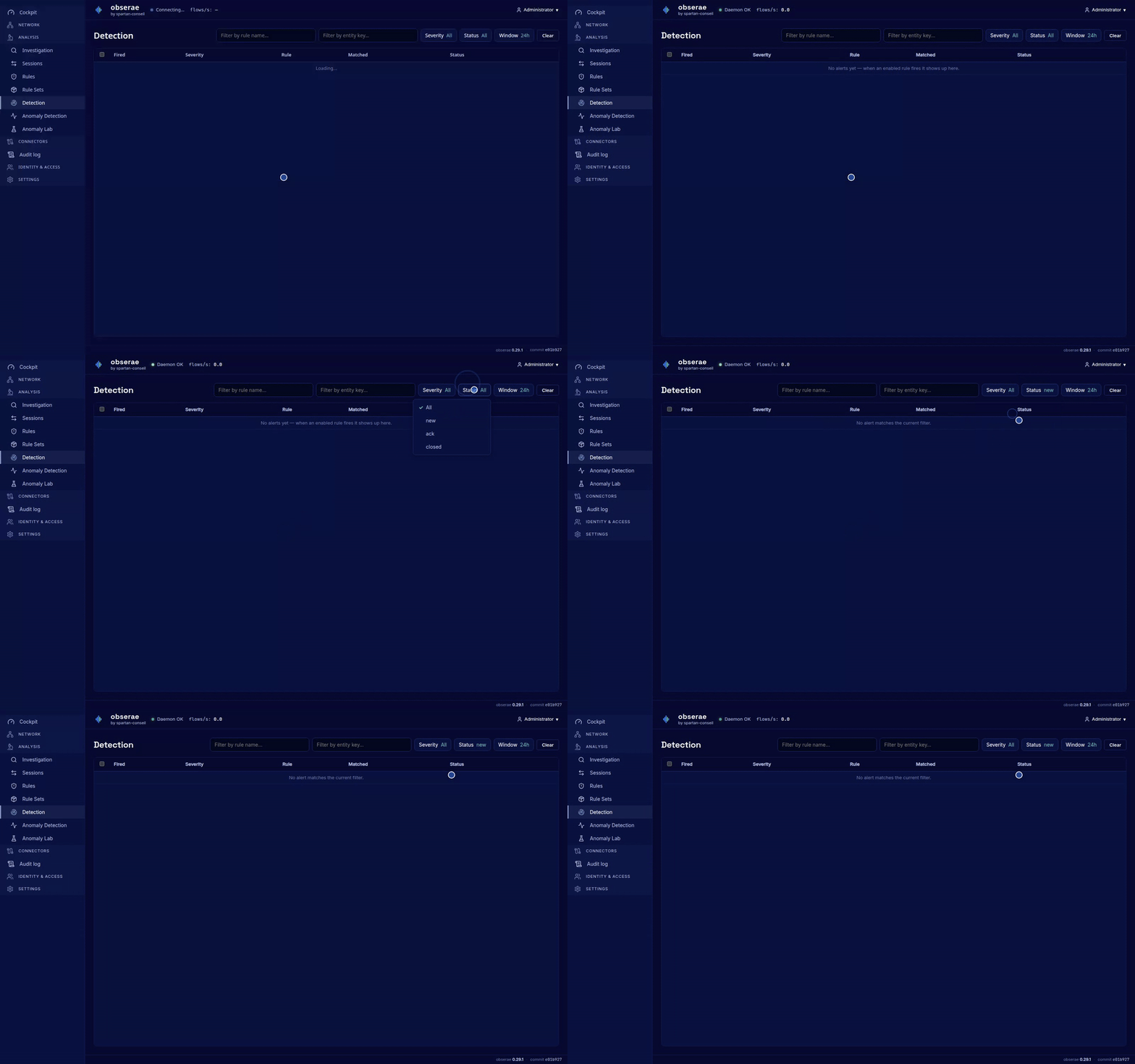
You can:
- Filter by severity, status, rule, or time window.
- Advance an alert’s status with the Acknowledge then Close
button (the status walks
new→ack→closed). - Delete alerts individually or in bulk.
The Detection page updates live — a new alert appears without a reload.
Coming from a host on the cartography?
The alert count you see when you hover a host covers the last 30 days,
while Detection defaults to the last 24h — so a host can show “5 active
alerts · last 30d” on hover while the Detection list looks empty. Use the
host’s Triggers link (it opens Detection on the same 30-day window), or
widen the Window filter to 30d. Filtering by an IP in Filter by
entity key also works for rules that don’t group by entity (like ssh
detected) — the address is matched against the alert’s sample rows.
What the statuses mean
The status is your triage state, not the alert’s severity — it tracks where you are in handling it:
- new — nobody has looked yet. This is your work queue; filter on
status = newto see only what still needs attention. - ack (acknowledged) — someone is on it. Acknowledge as soon as you start investigating so a teammate doesn’t pick up the same alert. It stays acknowledged while you dig in.
- closed — handled. Either you remediated the issue, or you decided it was a false positive / expected traffic. Closing keeps the record (it is not deleted) so the history stays auditable.
obserae also closes an alert by itself once the condition it reported has gone away — see below.
Use Delete only for noise you never want to see again — a misfired test rule, for example. Prefer Close for real alerts you have dealt with, so the trail survives.
Alerts that close themselves
An alert is a statement about a condition, and a condition can end. When a rule stops matching, obserae closes the alert on its own: the status becomes closed here, and every destination that accepts it is told (PagerDuty resolves the incident, Opsgenie closes the alert). Acknowledging an alert here reaches those destinations too, so an on-call engineer who takes it in obserae is not paged again by a SOAR that never heard.
Why three evaluations and not one. obserae waits for the rule to come back
clean three times in a row before closing (resolve_after_evaluations,
1–20). A condition that comes and goes — a scanner that pauses for a minute, a
service that flaps — would otherwise open and close an incident every other
tick, and an on-call rotation that is woken by a flapping integration stops
trusting it within a fortnight. Any single match resets the count, so an
intermittent condition simply stays open until it is really gone.
It counts evaluations, not minutes: a rule that runs every hour and one that runs every ten seconds need the same setting, and a rule that was skipped never banks silence nobody actually observed.
A heartbeat rule works the other way round, as you would expect: it fires when its query goes empty, so it closes when the data comes back.
A worked example
Say ssh-from-internet fires with 3 matched rows:
- Acknowledge the alert so it leaves the
newqueue. - Open it to see the matching rows — the source IPs that reached SSH from outside.
- Qualify the source with enrichment. The IP badges tell you a lot at a glance: a 🇫🇷 flag and your office’s ASN is probably a known admin on a new IP; a Tor exit tag or an unexpected hosting ASN in another country is far more concerning. (See Connectors for what GeoIP, ASN and the Tor feeds tell you.)
- Decide and record. Real intrusion attempt → keep it acknowledged, remediate in the tools that can act (block the source on your firewall, rotate keys), then Close. Known admin → Close as expected, and consider narrowing the rule so it stops firing on that source.
If you wired up an Output, this same alert was also pushed to your webhook, Gotify, Slack, Mattermost, Telegram, syslog/SIEM, Splunk, Elasticsearch, PagerDuty, Opsgenie or email at the moment it fired — the Detection page is where you then track it to resolution.
How alerts are stored
Fired alerts are kept in an append-only log on disk (the same kind of store as the audit log), not in the live database, so alerting never slows down ingestion. Acknowledging, closing or deleting an alert just records the new state — older entries are aged out automatically by the alert retention setting (Settings → Retention, Drop alerts older than…), so the log can’t grow forever.
Keeping an eye on your rules
Every rule keeps a short history. Open a rule’s panel on the Rules page to see its recent runs: when each ran, whether it fired, how many rows it saw, and how long the query took. The Rules list also shows a Last exec column you can sort on — a quick way to find a “heavy” rule whose query is slow and should be tightened or run less often. The Cockpit summarises the whole picture: how many rules are active, how many alerts fired in the last hour, and whether any rules are running slowly.
obserae is careful to run alerting without slowing down traffic collection: queries run on a separate read path, heavy rules can be spaced out, and the system warns you in the logs if alerting ever starts to take up too much room.
Sharing rules between environments
A rule needs its query to work — the two travel together. They live as the
alerting: block of the single configuration file you export from the
Backup page and import from Restore:
- Download config (.yaml) on the Backup page downloads one file holding everything obserae is configured with — including all your saved queries and rules — to keep in version control or hand to another obserae.
- Restore → Configuration only loads such a file. If it carries an
alerting:section, that replaces all your current saved queries and rules with the file’s contents (obserae asks you to confirm first, and a section left out of the file is kept untouched). Your past alerts are kept — only the queries and rules are swapped. The file is checked in full before anything is written, so if it has a mistake nothing is changed and you get a clear error.
Good to know
- Editing a saved query updates every rule that uses it — on the next run, automatically. The rule always uses the latest version.
- You can’t delete a query a rule still uses. obserae tells you which rules depend on it; detach or delete those first.
- If a query stops working (for example you renamed something in the cartography it referred to), its rule is quarantined: it’s skipped with the error shown on the Rules page, and the rest keep running. Fix the query and the rule heals itself on the next run.
See also: NFQL for the query language, Anomaly detection for the statistical condition, and Flow Matrix rules for the connectivity rules (a different, complementary feature).